Practical guide
Find a photo's stored capture time without confusing file dates
A file can have several dates that answer different questions. Use a known JPEG to distinguish its stored capture claim from later digitization, image modification and the browser's file timestamp, then keep the source of each value in your report.
18 October 2026 · Check AI Free
Start with a supported JPEG original
The date viewer reads JPEG EXIF, supported simple standard-XMP date properties and stored GPS UTC fields, up to 20 MiB. It does not recover dates from pixels, query a camera account or change the file. Extended XMP reassembly and incomplete date-only strings are outside its current interpretation scope; the raw text and warning are retained when interpretation fails.
EXIF DateTimeOriginal describes the original image-data time, while DateTimeDigitized describes storage as digital data. Adobe's corresponding EXIF documentation keeps these roles separate. They can agree for a digital capture, but their agreement is not a timestamp certificate. For a scan or edited resource, a creation-related field can describe a different event from the photographed scene.
- Adobe EXIF namespace definitions — Primary documentation for the original/digitized date properties and their subsecond fields. The reader supports a defined subset.
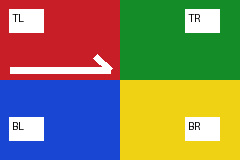
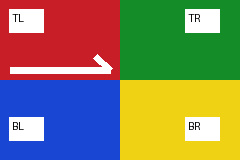
- Download the self-authored camera example — A 240 × 160 labeled corner chart, invented EXIF dates and a separately encoded 48 × 32 purple thumbnail. Camera fixtures v1; not a camera photograph.
Read the fictional sample's three embedded dates
Step 1
Choose the explicit-offset example
Open the date viewer and click Try explicit offsets, or choose date-offset.jpg from the download below. Each result card names its role and JPEG source/tag; the tool does not silently choose one date as the winner.
Step 2
Find Original capture time
The stored EXIF 0x9003 value is 2020:01:02 10:20:30, with SubSecTimeOriginal digits 123456789 and OffsetTimeOriginal +05:30. Its UTC instant is 2020-01-02T04:50:30.123456789Z. All nine subsecond digits remain in the report.
Step 3
Read digitization and modification separately
Digitization / resource creation time is 2020:01:02 10:21:00; Image modification time is 2020:01:02 12:00:00. Both have +05:30 in this defined sample. Neither is relabeled as the original capture time.
Step 4
Keep the browser file timestamp separate
The built-in sample deliberately uses a browser file modification instant of 2020-01-03T12:00:00.000Z. A separately downloaded copy can have a different browser timestamp. Neither value establishes when the scene was photographed.
Step 5
Save the source-aware reading
Click Copy date report or Download date JSON. The download is photo-dates.json and contains each source, raw date string, subsecond text, offset, UTC interpretation and warnings. It omits the filename; stored timestamps themselves can still be sensitive.
Check other clocks and the conflict branch
If a JPEG also contains GPS date/time, the viewer gives it a separate GPS UTC time card. For the earlier synthetic GPS fixture, that value is 2020-01-02T12:34:56Z while the capture string has no offset. Do not merge those two stored claims into one invented timestamp.
Click Try conflicting dates. Its digitization time is 08:00:00 at +05:30, earlier than the sample capture time of 10:20:30 at the same offset. The result is partial and explains the ordering conflict after offset conversion. The tool does not fix the clocks or decide which recorded event is true. Inspect original acquisition/editing records if the chronology matters.
- Download the conflicting-date example — A deliberate fictional chronology conflict; the source file is not rewritten by the viewer.
- Adobe XMP Basic date properties — CreateDate, ModifyDate and MetadataDate describe different events and need not equal filesystem timestamps.
When no capture date is available
Click Try no embedded dates. Only the separate Browser file modification time remains in the built-in example. The status says no supported embedded date was found, rather than calling the file timestamp its original creation date. The viewer may still have a valid browser record even though the embedded-date answer is empty.
A damaged EXIF block is a different branch: reading warnings make capture-date absence uncertain. An invalid calendar date, invalid offset or unsupported full-date syntax keeps its raw value without a valid UTC instant. PNG/WebP are not accepted by this date-specific viewer; use the general metadata reader for their currently supported fields.
- Download the JPEG without embedded dates — It is a valid image, not a deliberately damaged file.
- Read general metadata fields — Inspect other supported formats without inventing a capture time.
Sources and reproducible inputs
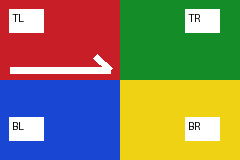
- Download the self-authored camera example — A 240 × 160 labeled corner chart, invented EXIF dates and a separately encoded 48 × 32 purple thumbnail. Camera fixtures v1; not a camera photograph.
- Adobe EXIF namespace definitions — Primary documentation for the original/digitized date properties and their subsecond fields. The reader supports a defined subset.
- Adobe XMP Basic date properties — CreateDate, ModifyDate and MetadataDate describe different events and need not equal filesystem timestamps.
Continue with your file
- Decide whether UTC conversion is possible — Compare explicit offsets, an unknown timezone and a real cross-date example.
- Inventory a collection first — Find which files have readable EXIF before inspecting detailed dates.
- Choose another photo metadata task — Read dates, fix a display copy, extract a thumbnail or export records.