Practical guide
Fix sideways photo orientation and verify the display copy
A browser may already rotate a JPEG for display. Applying its EXIF tag again can rotate it twice. This walkthrough checks the stored orientation, creates a new display copy with the transform applied once, and makes the re-encoding policy explicit.
18 October 2026 · Check AI Free
Use a JPEG whose corners can be identified
The orientation tool currently accepts static JPEG files up to 20 MiB, at most 16 million pixels and at most 8192 pixels on either side. It checks encoded dimensions before decoding. Multi-picture JPEG and unsupported formats are rejected. Invalid, conflicting or unreadable orientation values do not produce a guessed transform.
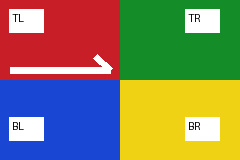
The project-authored example is a 240 × 160 chart with four differently labeled, colored corners. Its eight variants share encoded pixels and differ in the stored orientation value. Labels describe the original encoded corners, so a correct transformation can move the literal TL label away from the top-left display corner. Adobe's TIFF documentation defines all eight row/column arrangements.
- Download the orientation-6 corner chart — A self-authored test image, not a misoriented real person's photograph.
- Adobe TIFF namespace: Orientation — Primary documentation of the eight stored row/column orientations and the TIFF-derived modification-time property.
Create and inspect a single-transform copy
Step 1
Choose the output policy first
Open the orientation fixer. Leave Output format set to PNG for the first exercise. JPEG · quality 0.92 is also available, but it introduces another JPEG compression step. Changing the format clears an earlier output; choose the file or run the sample again to apply the new setting.
Step 2
Run the known tag
Set Synthetic tag to 6: Rotate 90° clockwise, then click Try orientation sample. The encoded input is 240 × 160 and the output is 160 × 240. The decoder receives a copy without orientation metadata, after which the stored transform is applied once on the Canvas.
Step 3
Check the labeled output, not only the source preview
The browser source preview may already apply EXIF orientation. In the new output for tag 6, the original BL corner is at top-left, TL at top-right, BR at bottom-left and TR at bottom-right. Compare those placements against the table below to detect double application or a missing mirror.
Step 4
Download and reopen the copy
After the status says Canvas copy encoded and re-opened, click Download upright copy. Open the downloaded image and check its dimensions and orientation again. It does not require an EXIF rotation tag to be displayed in the resulting direction.
Use all eight variants to cover mirrors too
Choose each Synthetic tag and repeat the sample operation. A square or visually symmetric image can conceal a wrong transform; the asymmetric chart makes those mistakes visible. Keep the actual downloaded outputs when checking another browser, rather than assuming that a pure matrix test proves its decoder behavior.
| EXIF value / operation | Output size | Output corners: top-left, top-right; bottom-left, bottom-right |
|---|---|---|
| 1 · Normal | 240 × 160 | TL, TR; BL, BR |
| 2 · Mirror horizontally | 240 × 160 | TR, TL; BR, BL |
| 3 · Rotate 180° | 240 × 160 | BR, BL; TR, TL |
| 4 · Mirror vertically | 240 × 160 | BL, BR; TL, TR |
| 5 · Transpose across top-left diagonal | 160 × 240 | TL, BL; TR, BR |
| 6 · Rotate 90° clockwise | 160 × 240 | BL, TL; BR, TR |
| 7 · Transpose across opposite diagonal | 160 × 240 | BR, TR; BL, TL |
| 8 · Rotate 90° counter-clockwise | 160 × 240 | TR, BR; TL, BL |
Understand what this output changes
This is Canvas re-encoding, not lossless JPEG rotation or metadata-only editing. File bytes change; compression, color handling and profiles can change too. In the accepted Chromium JPEG path the browser added a new 456-byte sRGB ICC profile; it did not copy the source profile. PNG avoids an additional lossy JPEG encode, but that does not turn it into an original camera file. EXIF, GPS, XMP, IPTC, the old thumbnail and existing Content Credentials are not carried into the new output.
No orientation tag means the encoded pixel arrangement is used as-is, with a warning. A damaged or conflicting tag, excessive dimensions, unsupported decode capability or failed output verification gives a visible failure instead of a successful file. If the encoded pixels themselves are sideways while the tag says normal, this tool has no evidence to infer the scene's correct direction.
Check the original and output in your intended viewing or publishing workflow. The first browser acceptance for this release is the recorded Chromium path; separate browser-engine checks are needed before claiming equivalent behavior everywhere.
Sources and reproducible inputs
- Download the self-authored camera example — A 240 × 160 labeled corner chart, invented EXIF dates and a separately encoded 48 × 32 purple thumbnail. Camera fixtures v1; not a camera photograph.
- Adobe TIFF namespace: Orientation — Primary documentation of the eight stored row/column orientations and the TIFF-derived modification-time property.
Continue with your file
- Read the original orientation and other fields — Export the source metadata before making a display copy if you need a private record.
- Inspect the actual embedded thumbnail first — The old thumbnail can differ from the main image and is omitted by this re-encoding path.
- Compare supported metadata before and after — A metadata difference is separate from the new image's decoded pixel content.